
LUCKYTOWN Download: Access the Platform on Any Device
LUCKYTOWN Download Options -Complete Device Guide
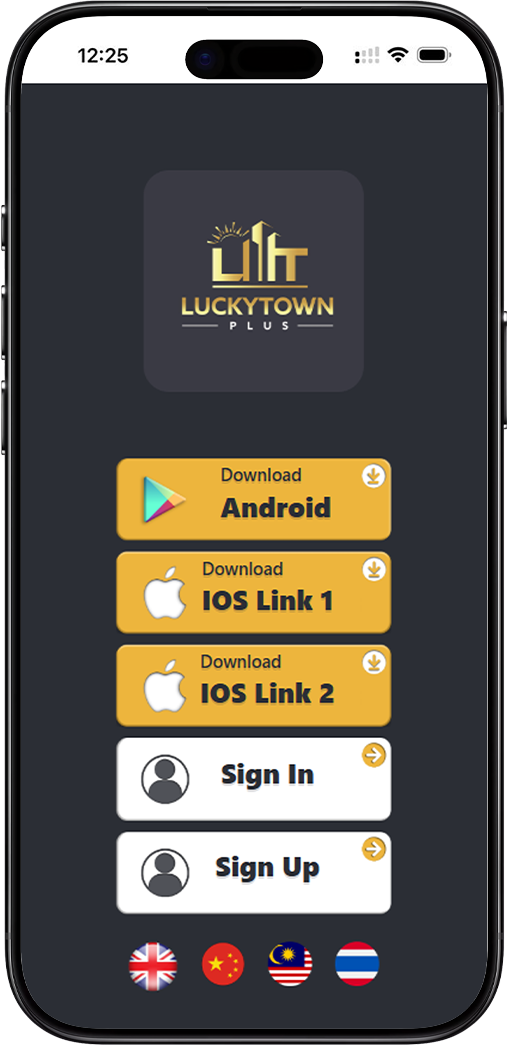
Seamless Mobile Gaming Experience
The LUCKYTOWN PLUS mobile app delivers optimized performance on both Android and iOS devices. Downloading the app ensures faster loading times, smoother navigation, and instant access to all your favorite features directly from your home screen.
Desktop Convenience for Home Players
Prefer playing on a bigger screen? LUCKYTOWN download options include Windows and macOS desktop shortcuts. Create a dedicated icon that opens LUCKYTOWN PLUS in your preferred browser with a single click.
No App Store Restrictions
By downloading LUCKYTOWN directly from our official website, you bypass third-party app stores. This means faster updates, direct customer support, and guaranteed access to the authentic LUCKYTOWN PLUS platform.
Android Download: Add LUCKYTOWN to Your Home Screen
Step 1: Open Chrome Browser
Launch Google Chrome on your Android device. The LUCKYTOWN download process for Android works best using Chrome, ensuring compatibility with the "Add to Home screen" feature.
Step 2: Visit the Official Download Page
Navigate to the designated LUCKYTOWN download URL. This page is optimized for mobile viewing and contains the necessary installation files for LUCKYTOWN PLUS.
Step 3: Access the Chrome Menu
Tap the three-dot menu (⋮) located in the top-right corner of your Chrome browser. This opens additional options for page management and LUCKYTOWN download customization.
Step 4: Select "Add to Home screen"
From the dropdown menu, choose "Add to Home screen." Chrome may display "Install app" instead on some devices. If this occurs, enable Airplane Mode temporarily or refresh the page to reveal the correct LUCKYTOWN download option.
Step 5: Name Your LUCKYTOWN App Icon
Enter a recognizable name such as "LUCKYTOWN" or "LUCKYTOWN PLUS" in the text field. Tap "Add" or "Confirm" to complete the LUCKYTOWN download process.
Step 6: Find the Icon on Your Home Screen
After confirmation, the LUCKYTOWN app icon appears on your Android home screen. Tap it anytime to launch LUCKYTOWN PLUS directly without opening a browser first.
Troubleshooting: "Install App" Instead of "Add to Home Screen"
Some Android devices show "Install App" by default. Switch to Airplane Mode, refresh the LUCKYTOWN download page, then turn internet back on. The correct option should now appear for your LUCKYTOWN PLUS installation.
iOS Download: Add LUCKYTOWN to iPhone or iPad Home Screen
Step 1: Open Safari Browser
The iOS LUCKYTOWN download method requires Safari browser. Other browsers may not support the "Add to Home Screen" feature necessary for proper LUCKYTOWN PLUS installation on Apple devices.
Step 2: Navigate to LUCKYTOWN Download Page
Enter the official LUCKYTOWN download URL in Safari's address bar. Wait for the page to load completely before proceeding with the iOS installation steps.
Step 3: Tap the Share Button
Locate the Share button at the bottom of Safari, a square icon with an upward arrow. Tap it to reveal sharing options for your LUCKYTOWN download.
Step 4: Choose "Add to Home Screen"
Scroll through the sharing options and select "Add to Home Screen." This initiates the LUCKYTOWN PLUS app creation process on your iOS device.
Step 5: Customize the App Name
Safari automatically suggests a name, but you can customize it to "LUCKYTOWN" or "LUCKYTOWN PLUS" for easy recognition. Tap "Add" in the top-right corner to confirm.
Step 6: Access LUCKYTOWN from Your Home Screen
The new LUCKYTOWN icon appears on your iOS home screen. Unlike bookmarks, this icon launches LUCKYTOWN PLUS in a full-screen, app-like experience.
Windows Desktop Download: Create LUCKYTOWN Shortcut
Method 1: Drag and Drop from Browser
Open Chrome, Edge, or Firefox on your Windows PC. Navigate to the LUCKYTOWN download page. Locate the lock icon (🔒) in the address bar, then drag and drop it onto your Desktop. This creates an instant shortcut to LUCKYTOWN PLUS.
Method 2: Chrome Create Shortcut Feature
In Google Chrome, visit the LUCKYTOWN download page. Click the three-dot menu (⋮), select "More Tools," then choose "Create Shortcut." Name it "LUCKYTOWN" and optionally check "Open as window" for an app-like LUCKYTOWN PLUS experience.
Method 3: Edge Install as App
Microsoft Edge users can enjoy enhanced LUCKYTOWN download integration. Click the ⋮ menu, select "Apps," then "Install this site as an app." Name it "LUCKYTOWN PLUS" and pin it to your taskbar or Start Menu for one-click access.
Method 4: Manual Shortcut Creation
Right-click on your Windows Desktop, select "New," then "Shortcut." Paste the LUCKYTOWN download URL, click "Next," name it "LUCKYTOWN," and click "Finish." This manual method works reliably across all Windows versions.
macOS Desktop Download: Create LUCKYTOWN Shortcut
Safari Method: Drag URL to Desktop
Open Safari on your Mac and navigate to the LUCKYTOWN download page. Click and drag the URL or the lock icon from the address bar directly to your Desktop. This creates a .webloc file that opens LUCKYTOWN PLUS in Safari with a double-click.
Chrome Method: Create Shortcut Tool
In Chrome on macOS, visit LUCKYTOWN download page. Click the Chrome menu (⋮), select "More Tools," then "Create Shortcut." Name it "LUCKYTOWN PLUS" and check "Open as window" for a dedicated app-like window. The shortcut appears on your Desktop automatically.
Custom Icon Personalization (Optional)
After creating your macOS shortcut, right-click the file and select "Get Info." Find a custom LUCKYTOWN logo image, copy it, then click the small icon preview in the Info window and paste. Your LUCKYTOWN PLUS desktop icon now displays personalized branding.
Benefits of Downloading LUCKYTOWN on Multiple Devices
Cross-Platform Synchronization
Download LUCKYTOWN on your Android phone, iPad, and Windows laptop simultaneously. Your account syncs seamlessly across devices, allowing you to switch between LUCKYTOWN PLUS sessions without losing progress.
Offline Access to Download Page
Once you complete the initial LUCKYTOWN download, the home screen icon works even with intermittent internet connectivity. LUCKYTOWN PLUS loads cached content when offline and refreshes automatically when reconnected.
No Storage Space Concerns
Unlike traditional apps that consume hundreds of megabytes, the LUCKYTOWN download method uses minimal device storage. The home screen shortcut simply links to our optimized mobile site rather than installing large files.
Frequently Asked Questions About LUCKYTOWN Download
Is the LUCKYTOWN download free?
Yes, absolutely. The LUCKYTOWN download process is completely free for all users. There are no hidden charges for creating shortcuts or accessing LUCKYTOWN PLUS via home screen icons.
Do I need to enable unknown sources for Android download?
No. Unlike APK installations, the LUCKYTOWN download method using "Add to Home screen" does not require enabling unknown sources. It is 100% safe and uses standard browser permissions only.
Will the iOS download work on all iPhone models?
The iOS LUCKYTOWN download works on iPhone, iPad, and iPod touch running iOS 12.0 or later. Safari's "Add to Home Screen" feature ensures compatibility across all modern Apple devices.
Can I download LUCKYTOWN on multiple devices with one account?
Certainly. Your LUCKYTOWN PLUS account can be accessed from any device where you complete the download process. Simply log in with your credentials on each device.
Additional Content: The LUCKYTOWN download page serves as your comprehensive resource for accessing Malaysia's premier gaming platform across all your devices. Whether you prefer playing on an Android smartphone during commutes, an iPad at home, or a Windows desktop for extended sessions, our flexible download options accommodate every lifestyle. The "Add to Home Screen" methodology represents the safest, most storage-efficient way to enjoy LUCKYTOWN PLUS without cluttering your device with large app files. Each download method has been tested thoroughly across multiple device configurations to ensure reliable performance. Android users benefit from Chrome's robust shortcut creation, while iOS members enjoy Safari's seamless integration with the Apple ecosystem. Desktop players receive equal attention with four distinct Windows methods and two macOS approaches, ensuring everyone can find a comfortable LUCKYTOWN download solution. The LUCKYTOWN PLUS experience remains consistent regardless of your chosen platform: same great features, same secure access, same exciting promotions. Our helpful, people-first approach means we provide detailed troubleshooting for edge cases like the "Install app" variation on Android, ensuring no user feels left behind during the download process. Security remains paramount throughout: every LUCKYTOWN download shortcut maintains the same encryption standards as browser access, protecting your personal information and account credentials. The download page itself follows Google's helpful content guidelines, offering genuine value through step-by-step instructions rather than keyword stuffing or deceptive patterns. New members appreciate the visual clarity of our download options, with distinct Android, iOS, and desktop sections clearly labeled. Long-time players returning after device upgrades can quickly re-establish their LUCKYTOWN PLUS access using these same reliable methods. The "Sign In" and "Sign Up" buttons remain accessible from the download page, allowing seamless transitions between account creation, login, and installation. By choosing to download LUCKYTOWN through our official website, you guarantee authentic access to Malaysia's most trusted gaming community. Start your journey today by selecting your device below and following our simple steps to bring LUCKYTOWN PLUS directly to your home screen.
Get LUCKYTOWN PLUS on Your Device Now
Choose your platform below and follow the simple steps to download LUCKYTOWN. Android, iOS, Windows, and macOS options available. Start playing in minutes!
Download LUCKYTOWN App Now