
LUCKYTOWN Change App Icon: Complete Guide for LUCKYTOWN PLUS Members
LUCKYTOWN PLUS Change App Icon: Teaching Step Solutions
Introduction to LUCKYTOWN Change App Icon
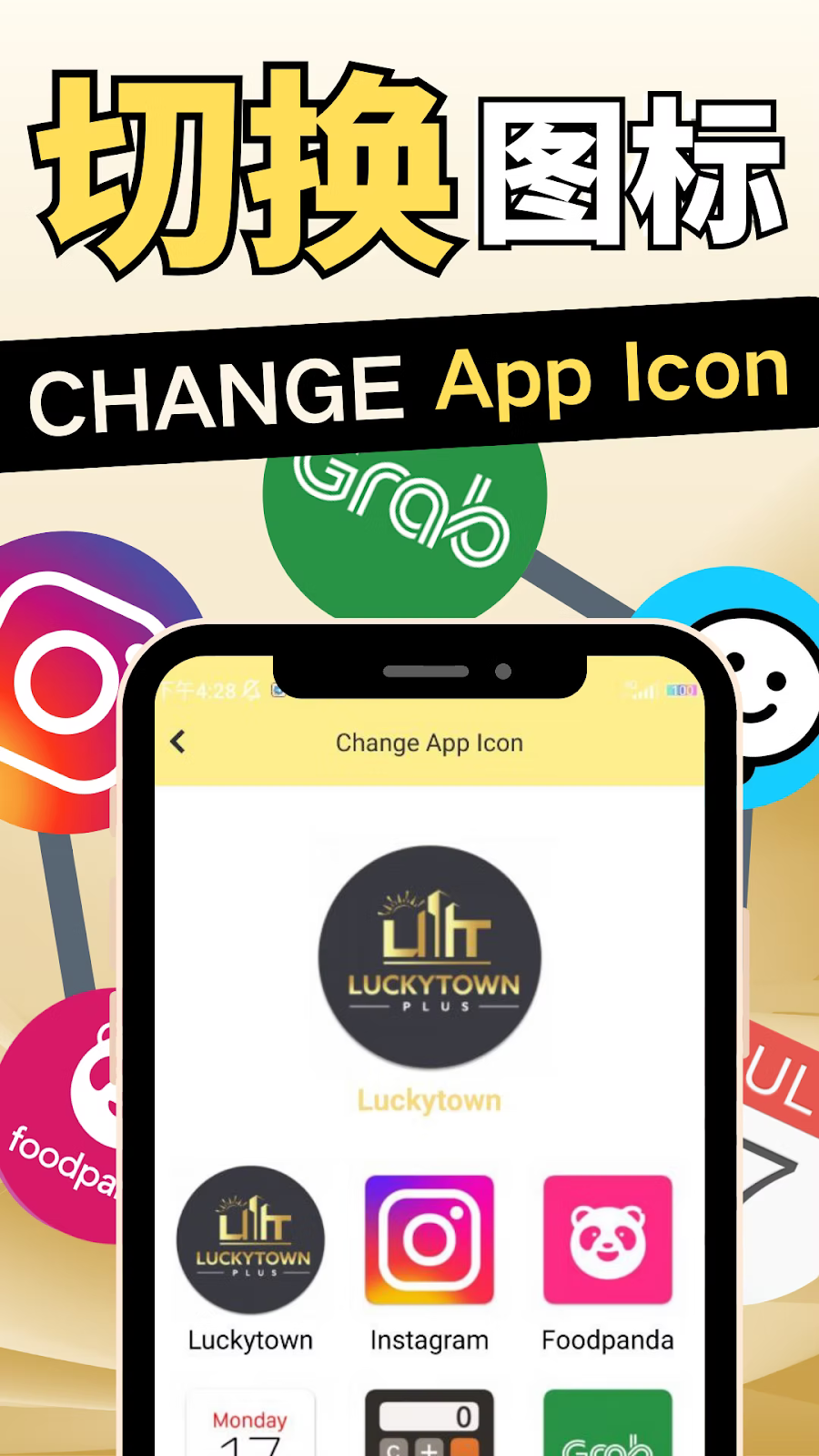
The LUCKYTOWN change app icon feature allows members to personalize their LUCKYTOWN PLUS app with different icon designs. Whether you prefer the classic LUCKYTOWN look, the Luckytown variant, or fun themes like Instagram, Foodpanda, Monday, or Grab, this guide walks you through every step. From accessing the Setting menu to confirming your selection, you can customize your app icon in minutes.
Step-by-Step Guide to LUCKYTOWN Change App Icon
Step 1: Click - Lucky Town Plus APP
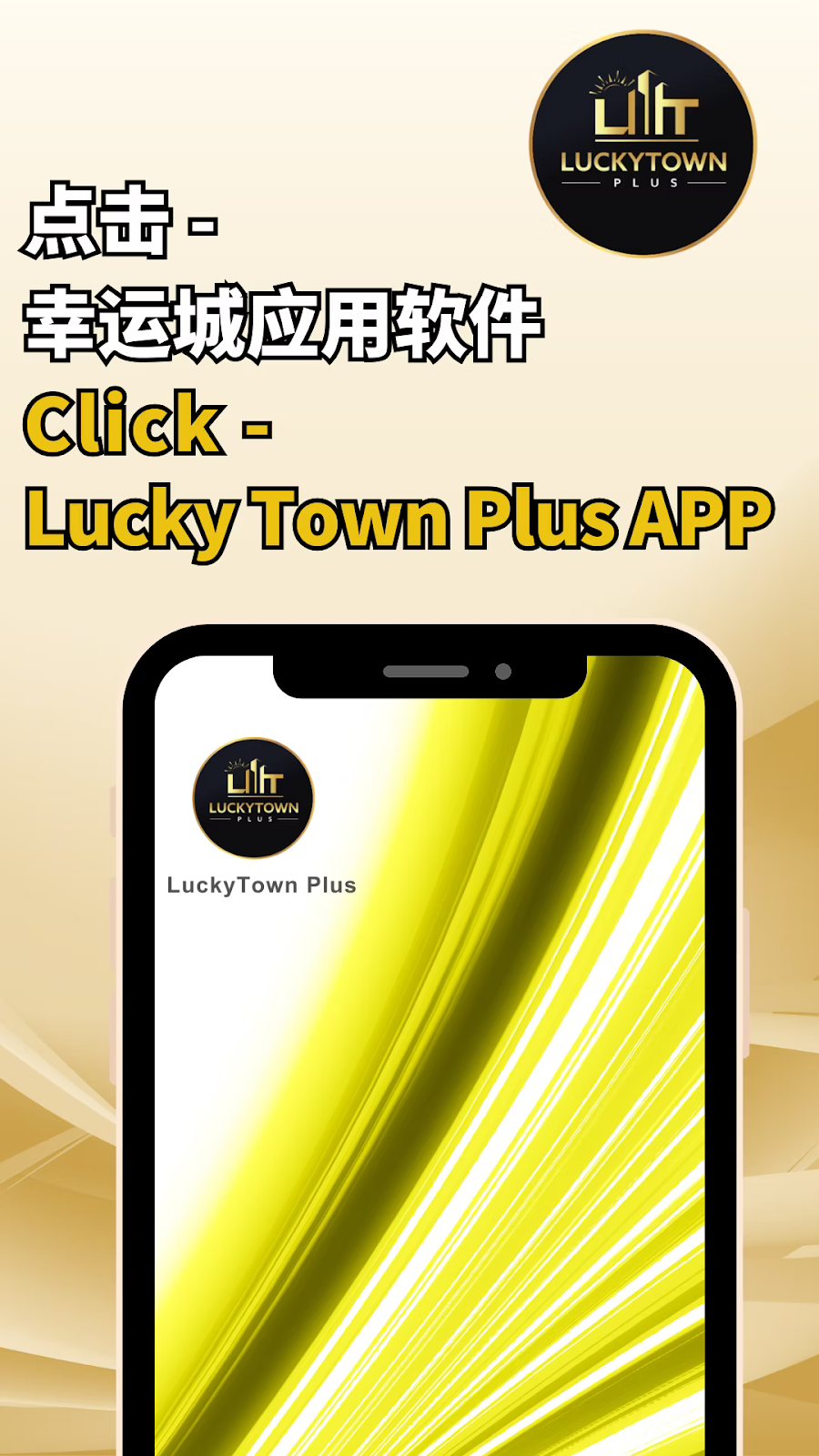
To begin your LUCKYTOWN change app icon process, open the Lucky Town Plus APP on your device. The home screen displays the LUCKYTOWN PLUS logo and "LuckyTownPlus" text. Locate and click on the app icon or the designated click area to access the main interface.
Step 2: Click - Setting
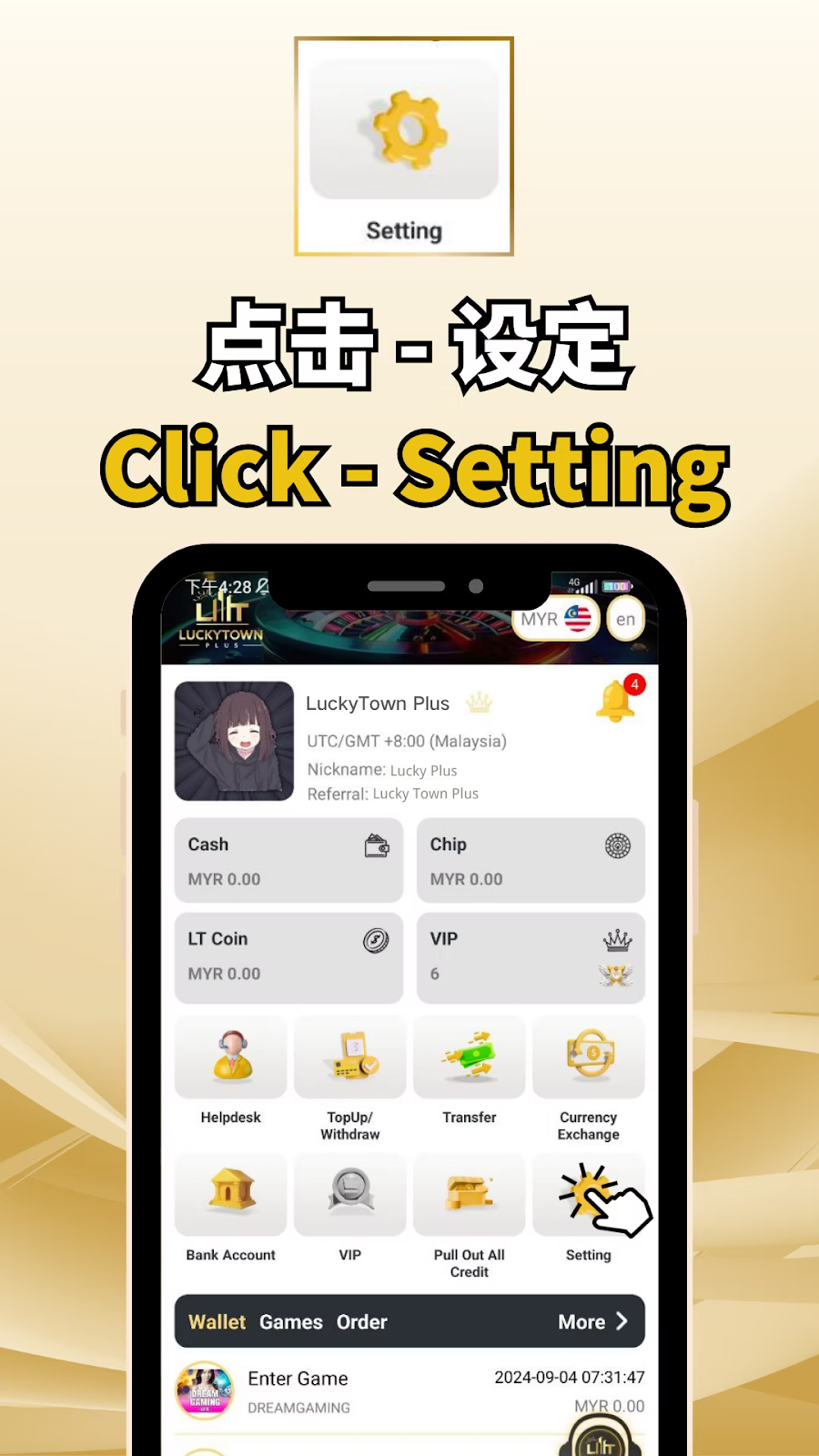
From the main interface, navigate to and click on "Setting". The Setting screen displays important account information including your time zone (UTC/GMT +8:00 Malaysia), nickname (e.g., Lucky Plus), referral information, and financial balances (Cash MYR 0.00, Chip MYR 0.00, LT Coin MYR 0.00). You'll also see your VIP level (6), and quick access buttons for Helpdesk, TopUp/Withdraw, Transfer, Currency Exchange, Bank Account, VIP, Pull Out All Credit, Wallet, Games Order, and Enter Game options like DREAMGAMING.
Step 3: Click - Change App Icon
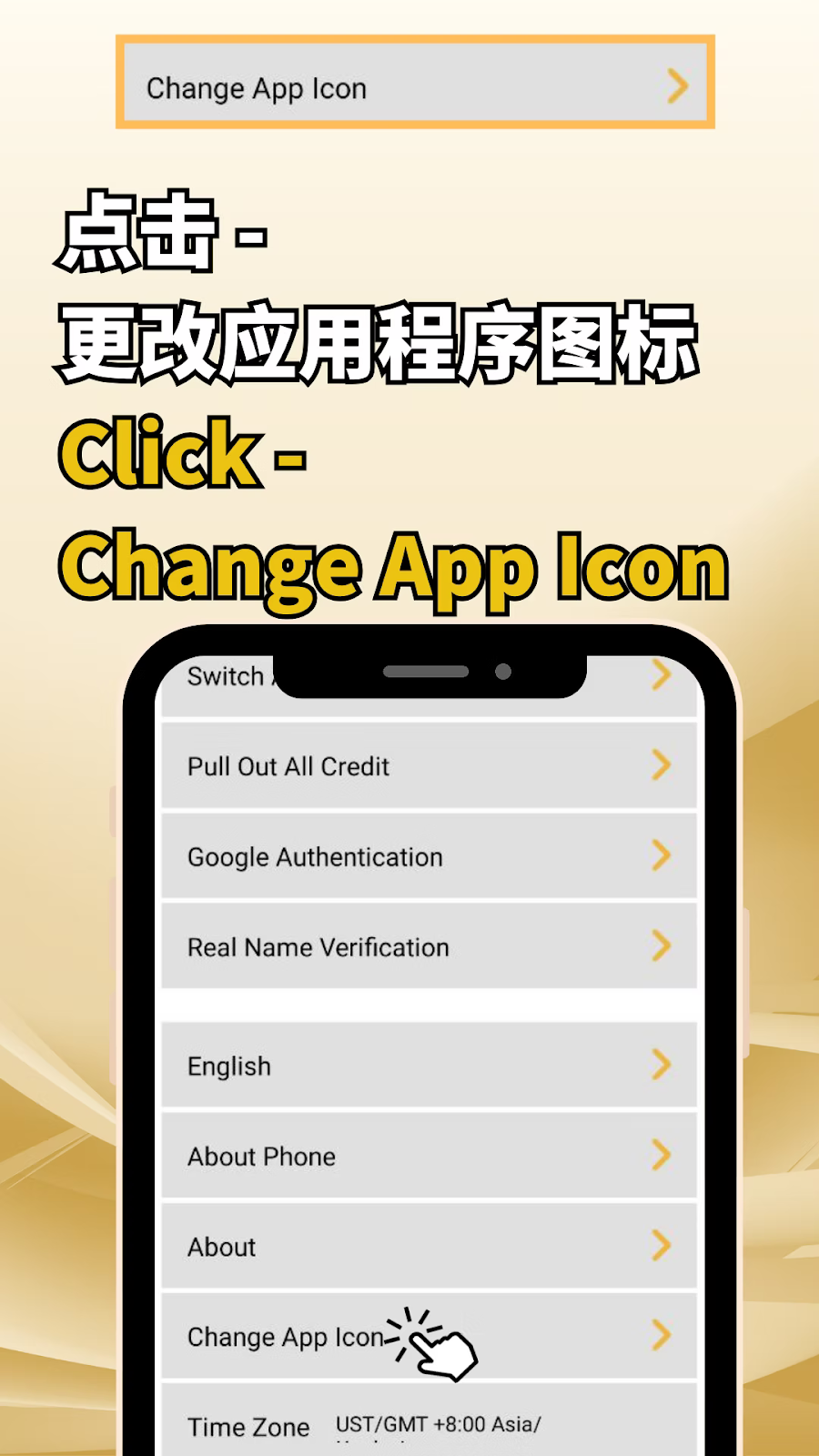
Scroll through the Setting menu options until you find "Change App Icon". The menu also includes Switch Account, Pull Out All Credit, Google Authentication, Real Name Verification, English language selection, About Phone, About, and Time Zone (UST/GMT +8:00 Asia/). Click on "Change App Icon" to proceed with your LUCKYTOWN change app icon customization.
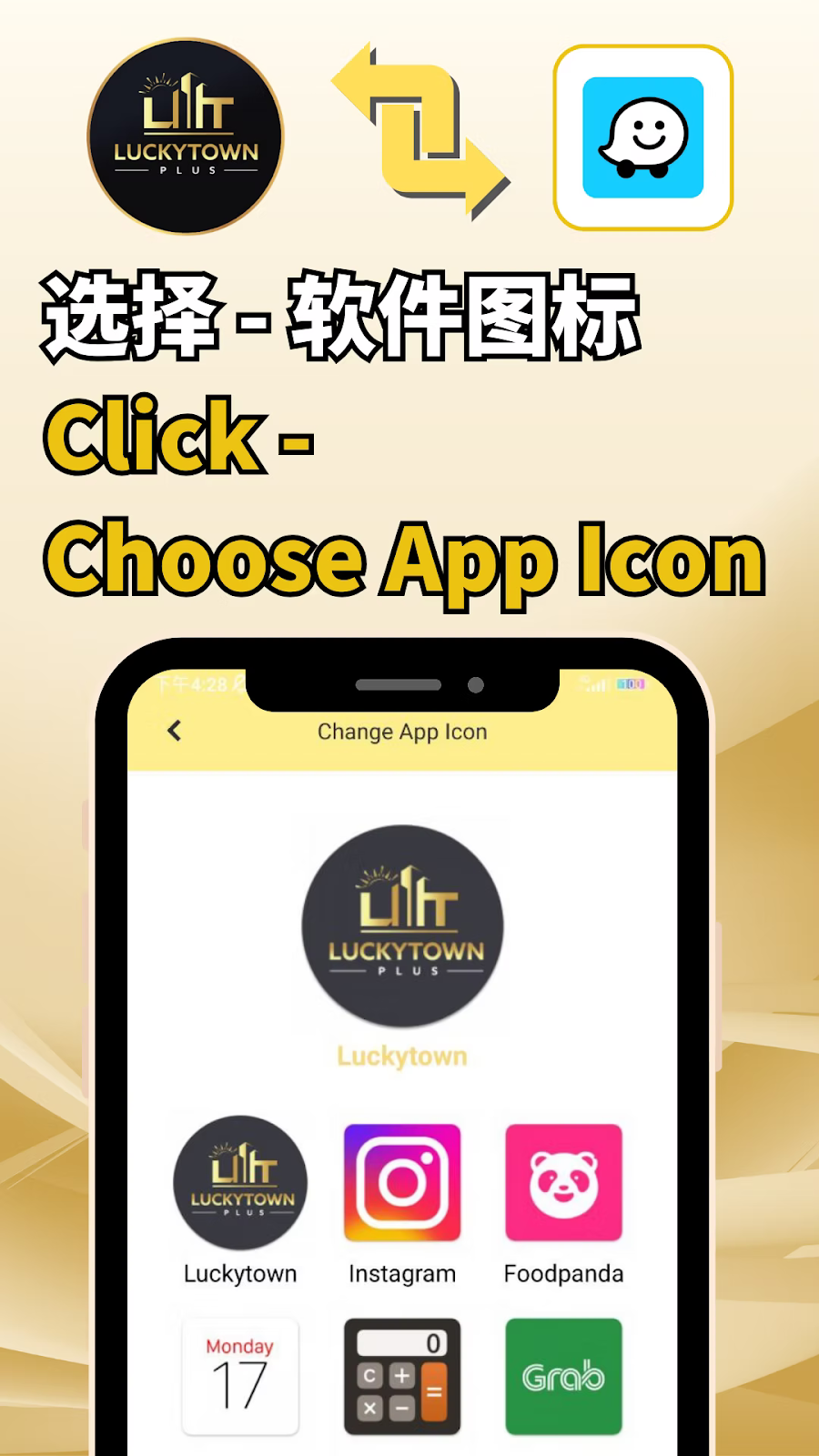
Step 4: Click - Choose App Icon
On the Change App Icon screen, you will see a selection of available icons displayed in a grid. Available icon options include:
Available App Icons
• LUCKYTOWN (classic design)
• PLUS (alternate design)
• Luckytown (text-based design)
• LUCKYTOWN (variant with different styling)
• PLUS (second variant)
• Luckytown (second variant)
• Instagram (social media themed)
• Foodpanda (food delivery themed)
• Monday (day-themed design)
• Grab (e-hailing themed)
• Additional icons as shown (Waze, Grub, etc.)
Browse through the options and click on the icon you wish to use for your LUCKYTOWN change app icon selection. The screen may display the time (e.g., 4:28 or 4:29) at the top.
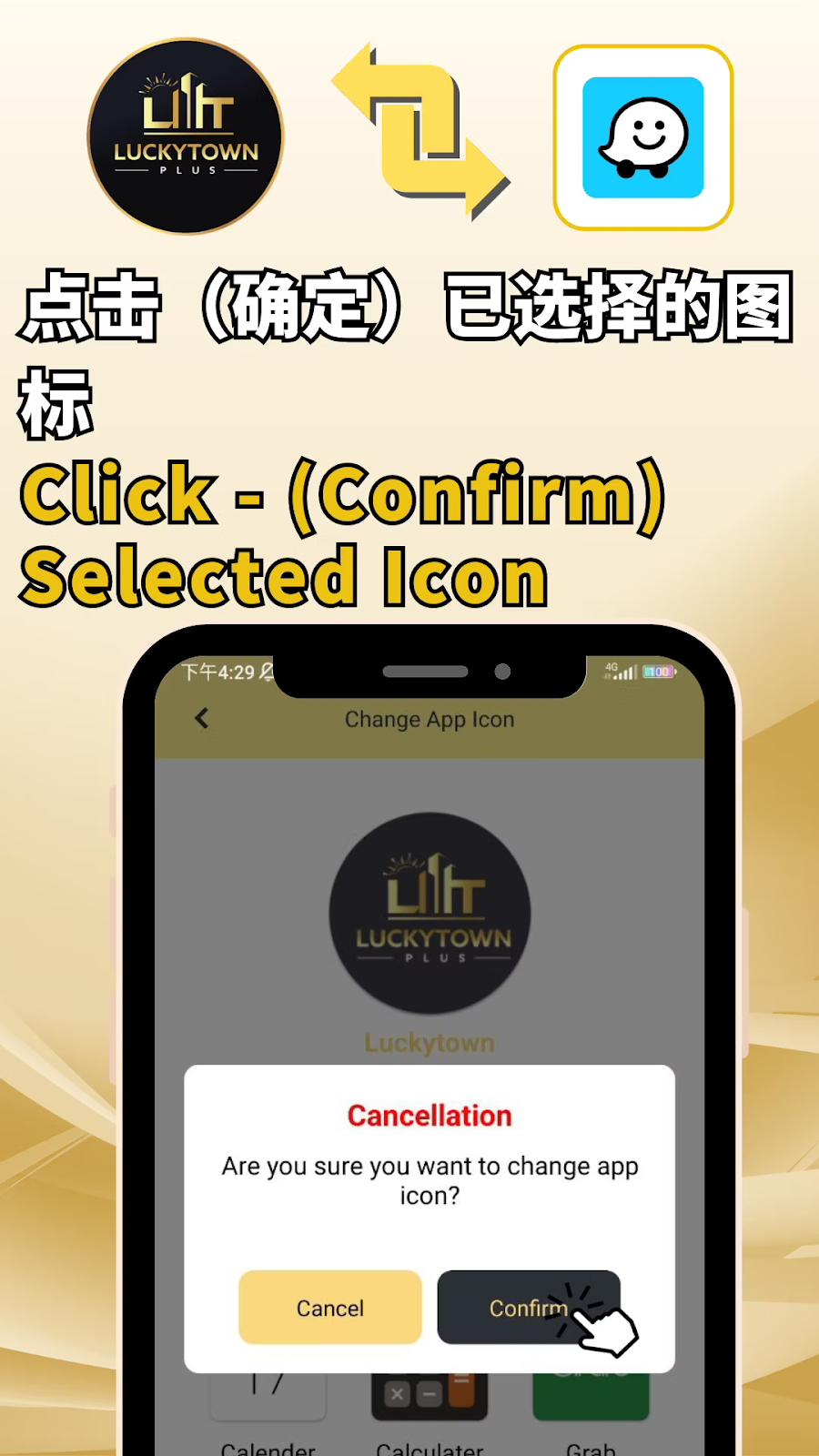
Step 5: Click - Confirm Selected Icon
After selecting your preferred icon, a confirmation dialog will appear showing your chosen icon prominently. The dialog asks: "Are you sure you want to change app icon?" with two buttons: "Cancel" and "Confirm". Click "Confirm" to finalize your LUCKYTOWN change app icon selection.
Step 6: Switch APP Icon Successfully
After confirmation, you will see the success message: "切换软件图标成功" (Switch APP Icon Successfully) or "Change App Icon Successfully". Your app icon has now been updated to your chosen design. The confirmation screen may display examples of other icons including Waze, Luckytown, Instagram, Foodpanda, Grub, and Monday for future reference.
LUCKYTOWN Change App Icon Important Guidelines
Icon Selection Variety
LUCKYTOWN change app icon offers multiple design options including branded LUCKYTOWN variants and fun themes like Instagram, Foodpanda, Monday, and Grab. Choose the style that best reflects your personality.
Confirmation Required
After selecting your icon, you must click Confirm to complete the LUCKYTOWN change app icon process. The cancellation option allows you to back out if you change your mind.
Immediate Effect
Once confirmed, the LUCKYTOWN change app icon takes effect immediately. Your device's home screen will display the new icon after the process completes.
Reversible Process
You can change your app icon again at any time by repeating these steps. The LUCKYTOWN change app icon feature allows unlimited customization.
Frequently Asked Questions About LUCKYTOWN Change App Icon
What icon options are available for LUCKYTOWN change app icon?
LUCKYTOWN change app icon offers multiple options including LUCKYTOWN, PLUS, Luckytown, Instagram, Foodpanda, Monday, Grab, Waze, and Grub themed icons.
How do I access the Change App Icon feature?
To use LUCKYTOWN change app icon, go to Setting from the main app interface, then scroll down and select "Change App Icon" from the menu options.
Will changing my app icon affect app functionality?
No. LUCKYTOWN change app icon only changes the visual appearance of your app icon. All app functionality remains exactly the same.
Can I change back to the original icon?
Yes. Simply repeat the LUCKYTOWN change app icon process and select your preferred original icon from the available options.
How long does the icon change take?
The LUCKYTOWN change app icon process is instant. After confirming your selection, the icon updates immediately on your device.
Is there a cost to change app icon?
No. LUCKYTOWN change app icon is a free personalization feature available to all LUCKYTOWN PLUS members.
What if I don't see the icon I want?
LUCKYTOWN regularly updates available icons. Check back periodically for new LUCKYTOWN change app icon options.
Why Use LUCKYTOWN Change App Icon
Personalization
LUCKYTOWN change app icon lets you customize your device to reflect your personal style. Choose from professional branded icons or fun themed designs.
Easy to Use
With just a few clicks from Setting to confirmation, LUCKYTOWN change app icon is accessible to all members regardless of technical expertise.
Multiple Options
From LUCKYTOWN branding to Instagram, Foodpanda, Monday, and Grab themes, LUCKYTOWN change app icon offers variety to suit different tastes.
Instant Results
Your selected icon appears immediately after confirmation, giving you instant gratification from the LUCKYTOWN change app icon process.
No Impact on Performance
LUCKYTOWN change app icon is purely visual and does not affect app performance, speed, or functionality in any way.
Additional Content: The LUCKYTOWN change app icon feature adds a fun, personal touch to your LUCKYTOWN PLUS experience. With icons ranging from the classic LUCKYTOWN design to popular brands like Instagram, Foodpanda, Monday, and Grab, you can make your app stand out on your home screen. The six-step process is simple: open the app, go to Setting, select Change App Icon, choose your favorite design, confirm your selection, and enjoy your new icon instantly. The confirmation dialog ensures you don't accidentally change icons, and the success message confirms the update. Whether you want your app to blend in with other icons or stand out as uniquely yours, LUCKYTOWN change app icon gives you that control. Try different themes to match your mood or the season, switching between professional LUCKYTOWN branding during work hours and fun Foodpanda or Grab themes on weekends. The possibilities are wide, and the process takes less than a minute. Personalize your LUCKYTOWN PLUS app today.
Personalize Your LUCKYTOWN App Today
Follow our simple guide to change app icon on LUCKYTOWN PLUS. Choose from LUCKYTOWN, Luckytown, Instagram, Foodpanda, Monday, Grab themes. Instant results, easy steps. Make your app uniquely yours!
Change App Icon Now