
LUCKYTOWN Change Password & Forgot User: Complete Guide for LUCKYTOWN PLUS Members
LUCKYTOWN PLUS Forgot User/Forgot Password/Change Password: Teaching Step Solutions

Introduction to LUCKYTOWN Change Password and Account Recovery
The LUCKYTOWN change password and account recovery features ensure you never lose access to your LUCKYTOWN PLUS account. Whether you need to change your password for security reasons, forgot your password, or cannot remember your username, this guide walks you through each recovery method. From using the Settings menu while logged in to recovering credentials with OTP verification on the login page, you can handle every account-access scenario with a clear step-by-step flow.
Method 1: LUCKYTOWN Change Password While Logged In
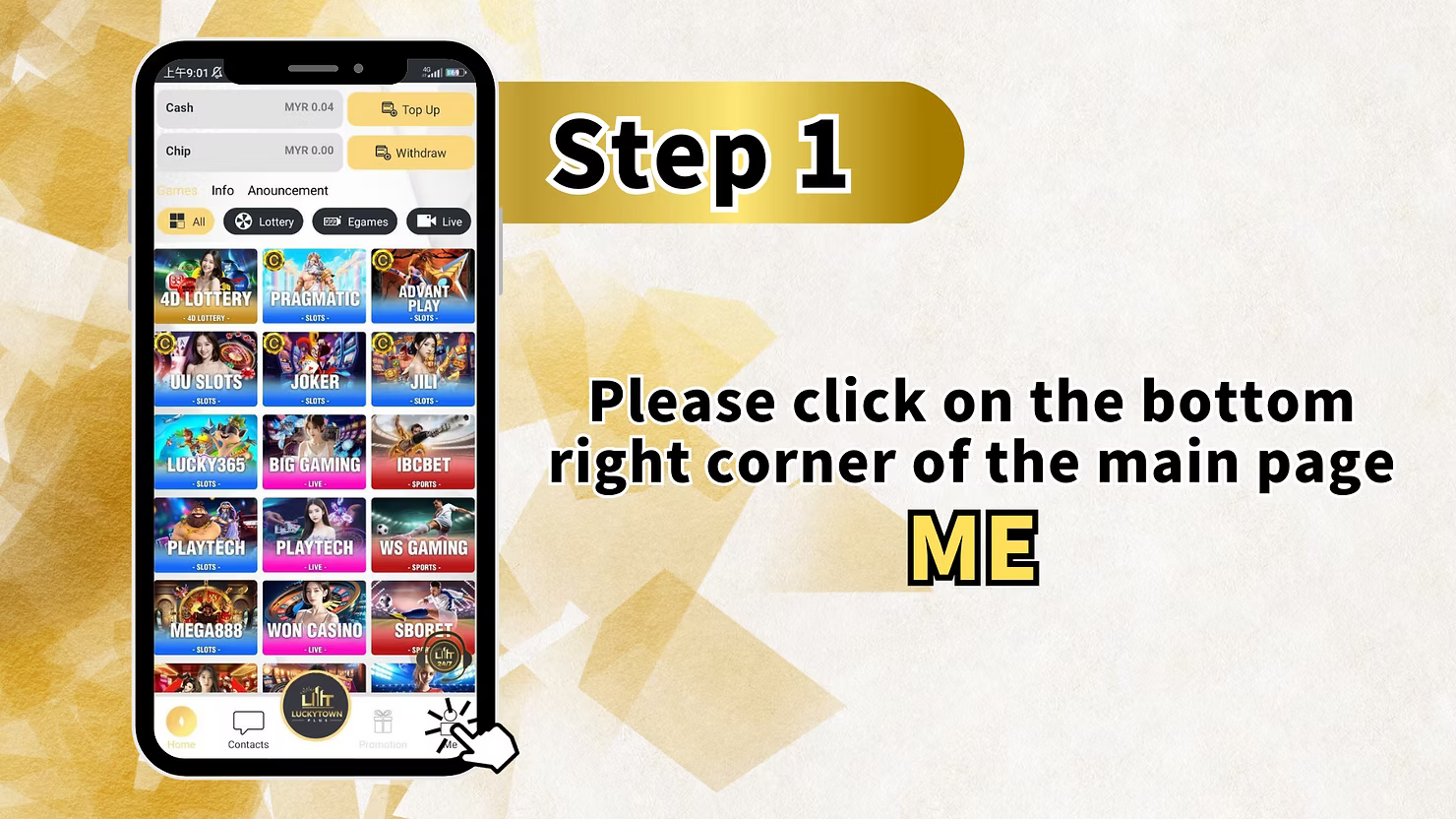
Step 1: Please Click on the Bottom Right Corner of the Main Page ME
To begin your LUCKYTOWN change password process while logged in, go to the main page of your LUCKYTOWN PLUS account and tap the bottom-right ME section. This area holds your account management options.
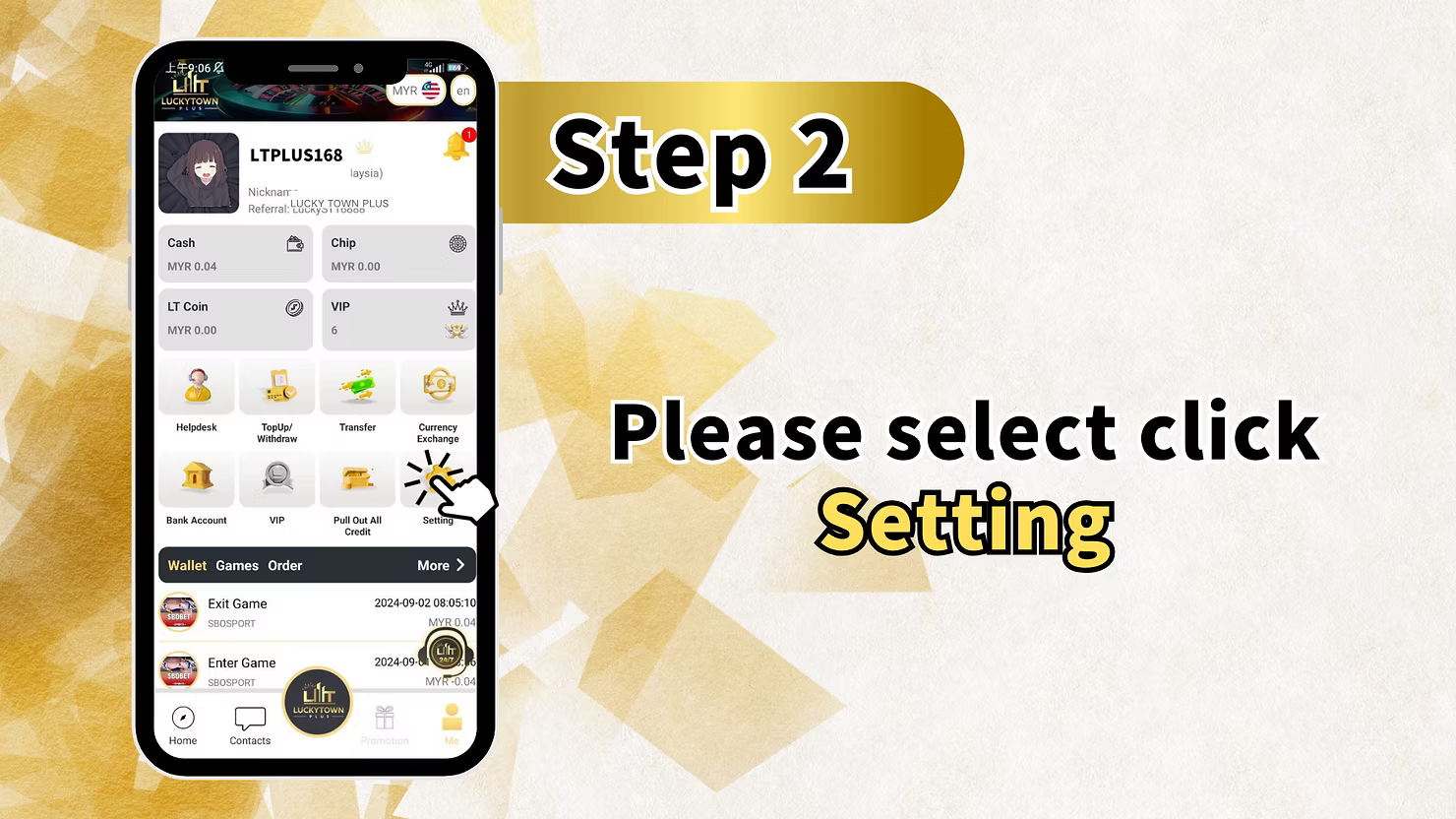
Step 2: Please Select Click Setting
After entering ME, select Setting to open your account configuration options for password changes and other preferences.
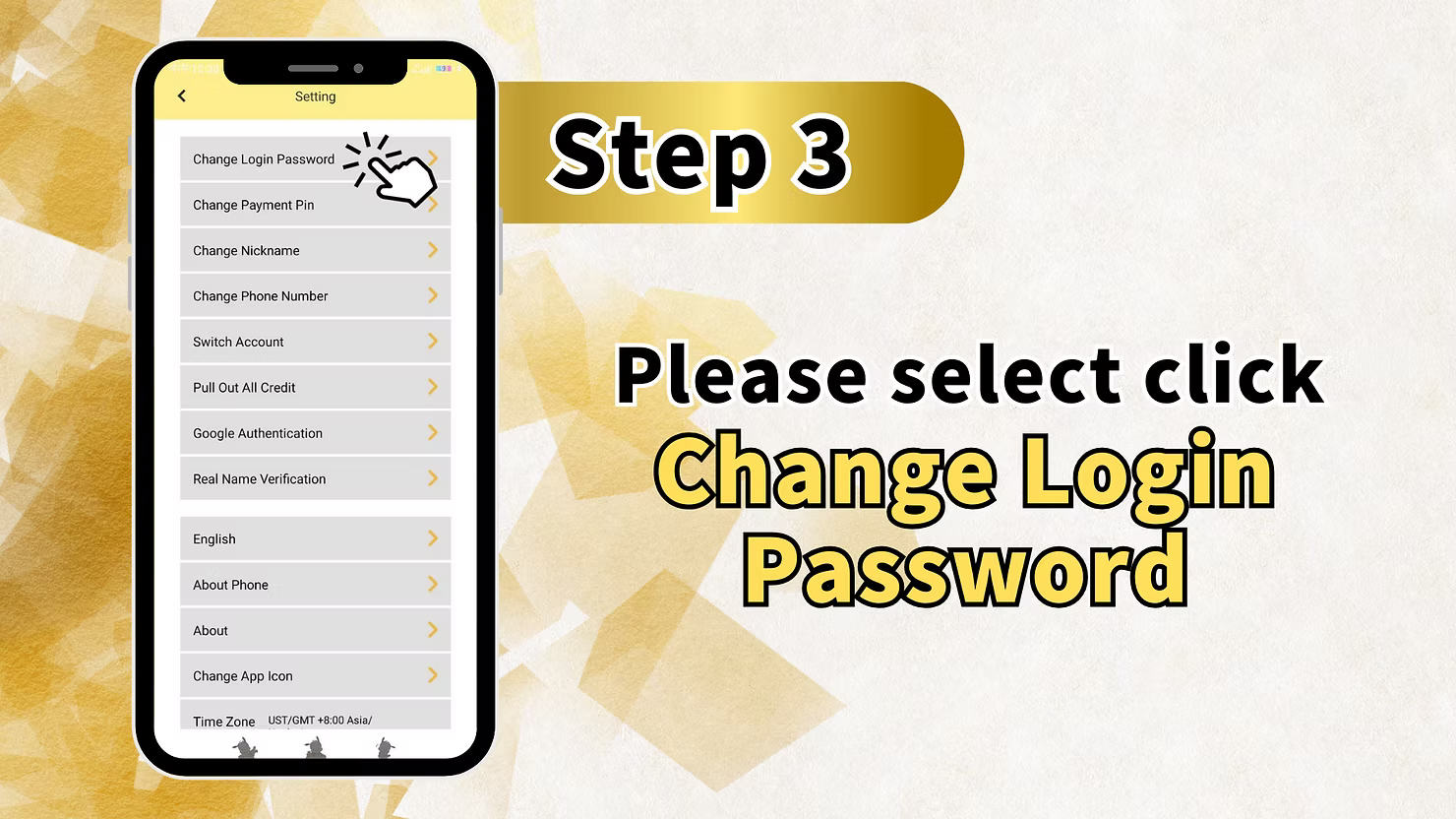
Step 3: Select Change Login Password
Inside the Setting menu, choose Change Login Password. This page sits alongside options such as Change Payment Pin, Change Nickname, Change Phone Number, Switch Account, Pull Out All Credit, Google Authentication, Real Name Verification, Change App Icon, and Time Zone.
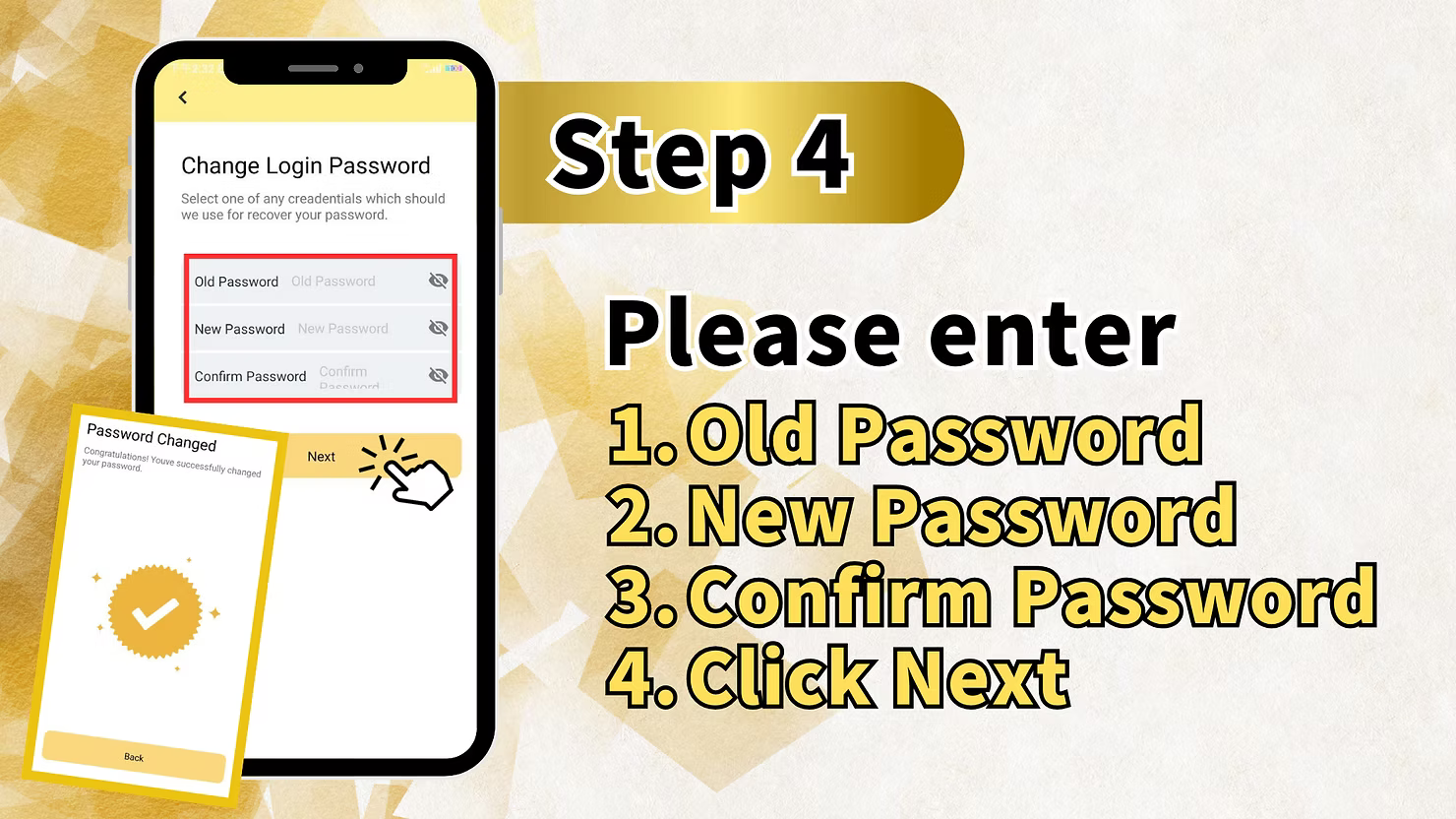
Step 4: Enter Old Password and New Password
On the Change Login Password screen, fill in Old Password, New Password, and Confirm Password. Enter your current password first, then enter the new password twice so both fields match.
Step 5: Confirm Password Change
After the fields are correct, click Confirm. The system will show a Password Changed confirmation message. Click Next to complete the LUCKYTOWN change password process.
Method 2: LUCKYTOWN Forgot Password Recovery (Not Logged In)
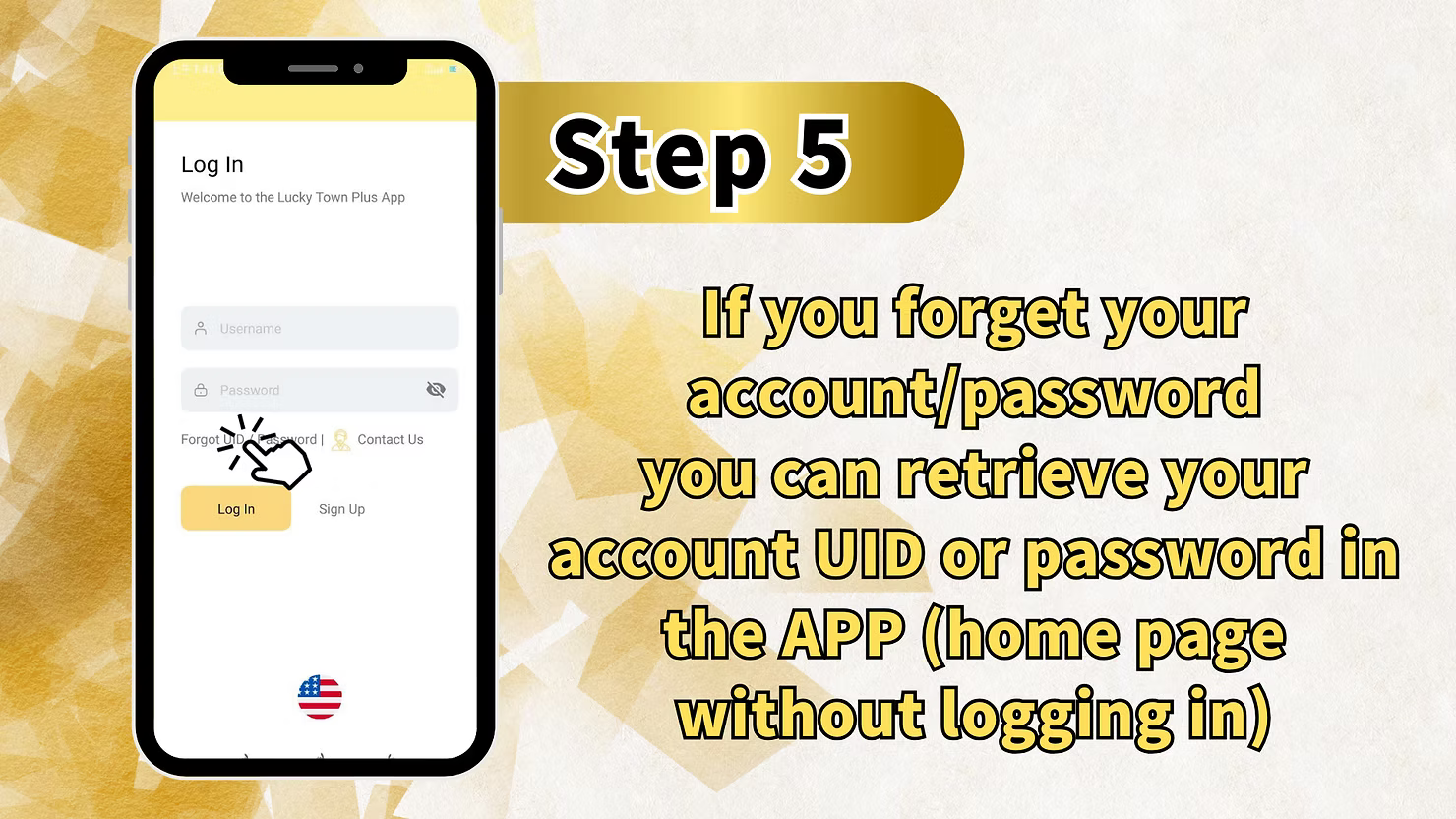
Step 5 (Alternate): Access Login Page Recovery Options
If you cannot log in and need LUCKYTOWN forgot password help, start from the login page. The screen shows Username and Password fields together with Forgot Password? and Contact Us links.
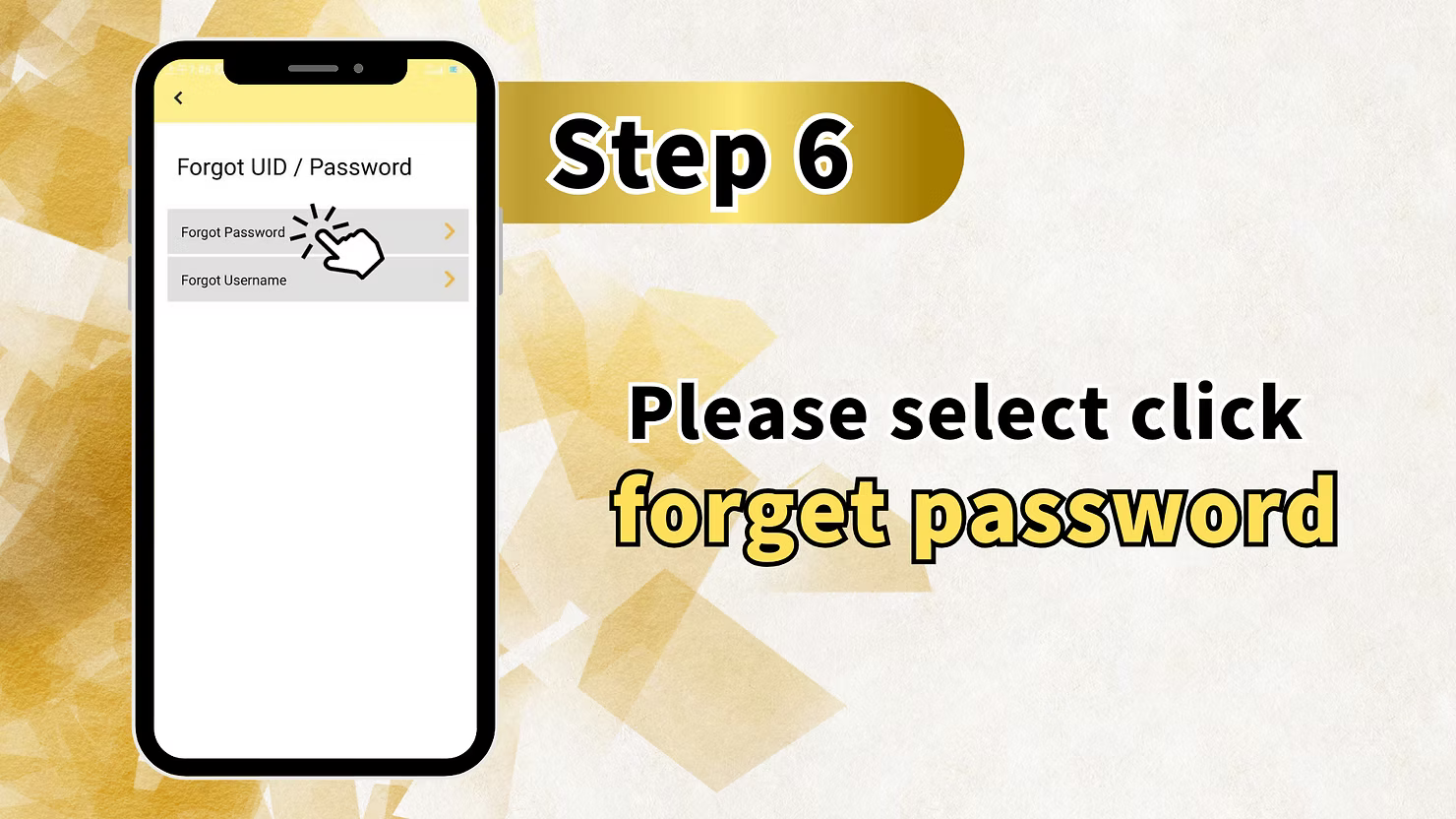
Step 6: Please Select Click Forgot Password
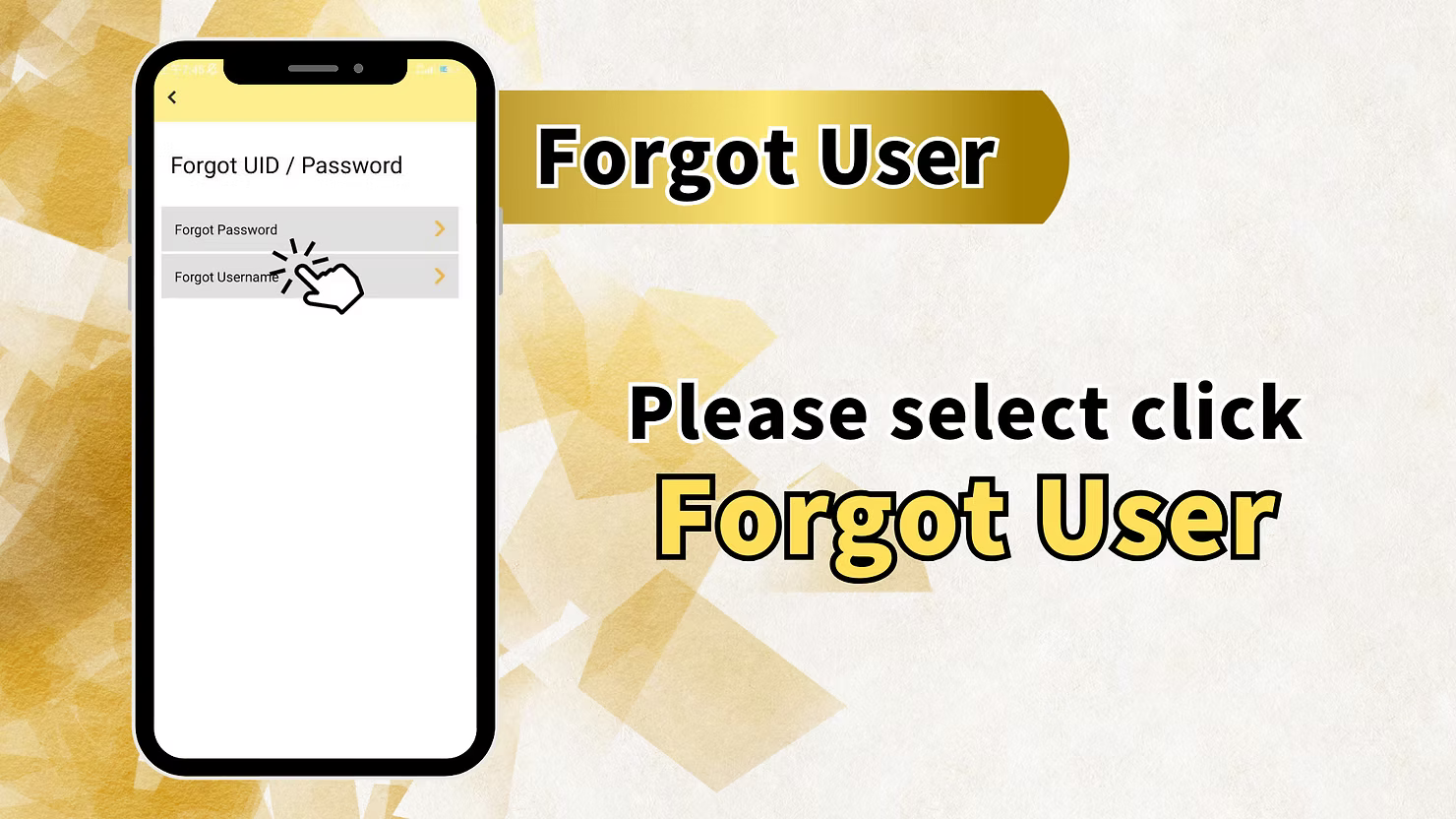
On the Forgot UID / Password screen, you will see Forgot Password and Forgot Username. Select Forgot Password to continue with password recovery.
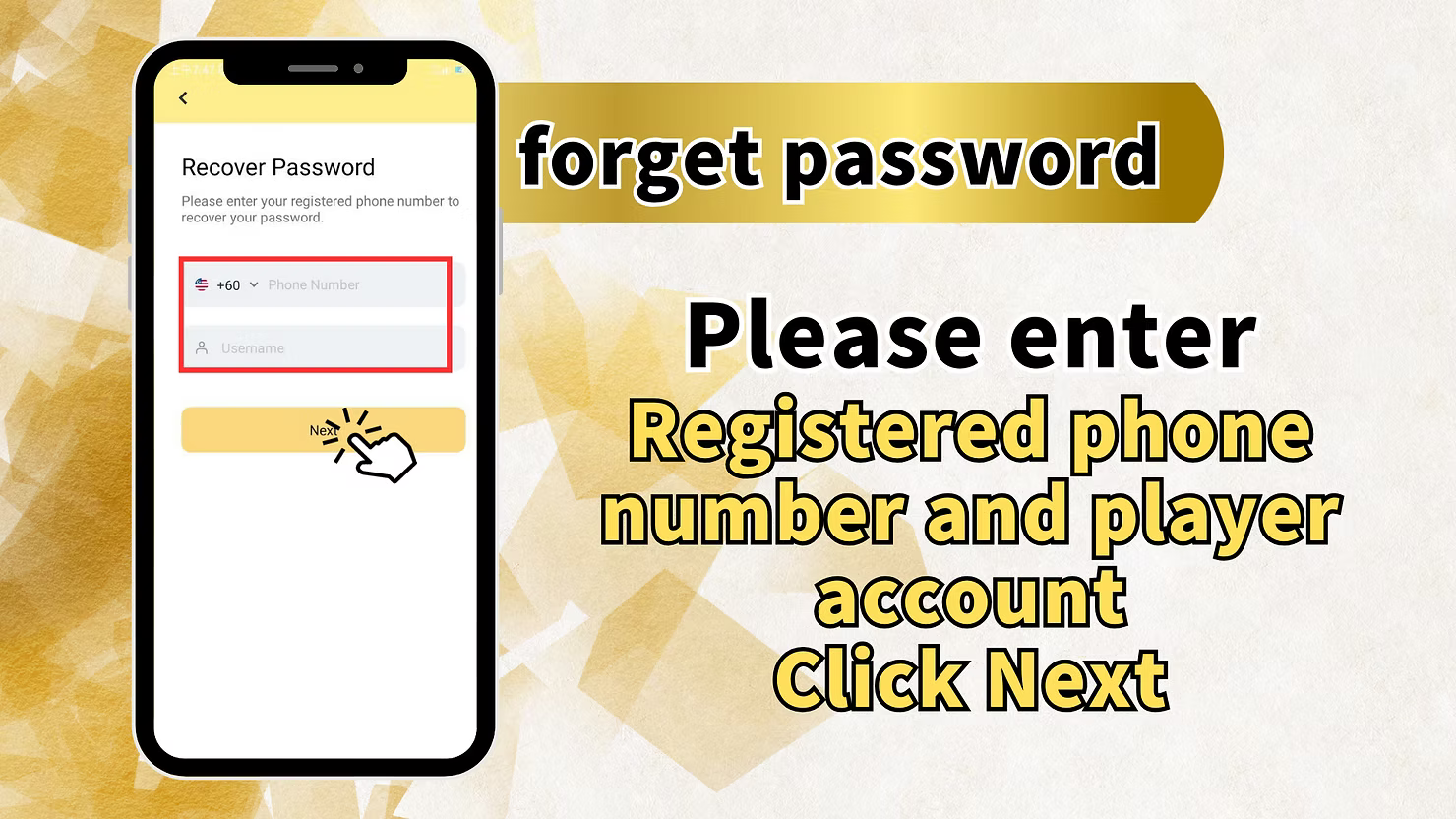
Step 7: Enter Registered Phone Number
The Recover Password page asks you to enter your registered phone number to recover your password. Fill in your +60 phone number and Username exactly as registered to your LUCKYTOWN PLUS account.
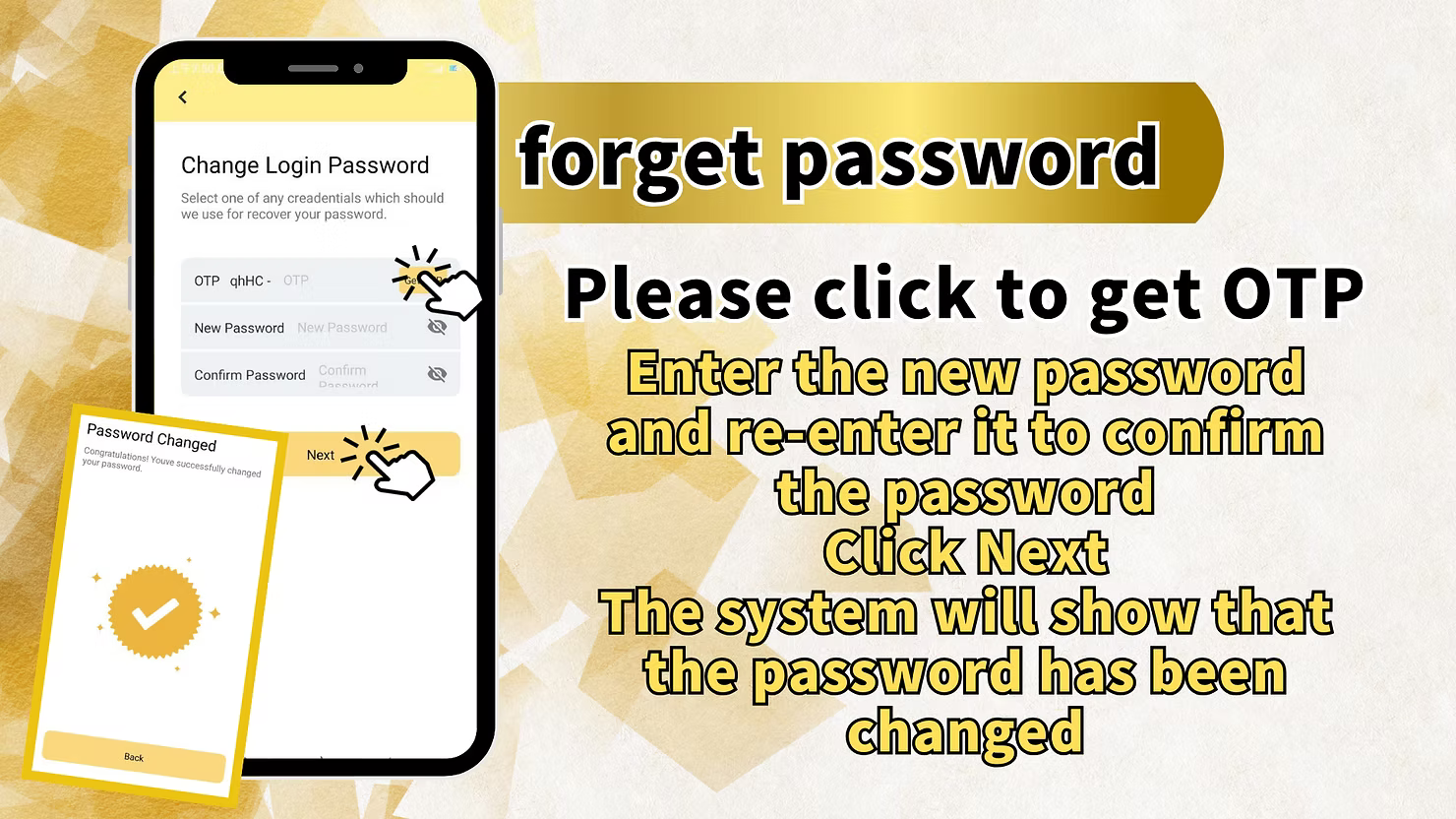
Step 8: Get OTP and Enter New Password
Request the OTP sent to your registered mobile number, then enter the code you receive. After that, enter your New Password and Confirm Password. Make sure the new password follows the platform security requirements.
Step 9: Click Next to Complete
After entering the OTP and confirming the new password, click Next. The system will confirm the password change and you can log in again with the updated password.
Method 3: LUCKYTOWN Forgot Username Recovery
Step 6 (Alternate): Select Forgot Username
If you need LUCKYTOWN forgot username help, start from the login page, click Forgot UID / Password, and then choose Forgot Username instead of Forgot Password.
Step 7: Enter Registered Phone Number for Username Recovery
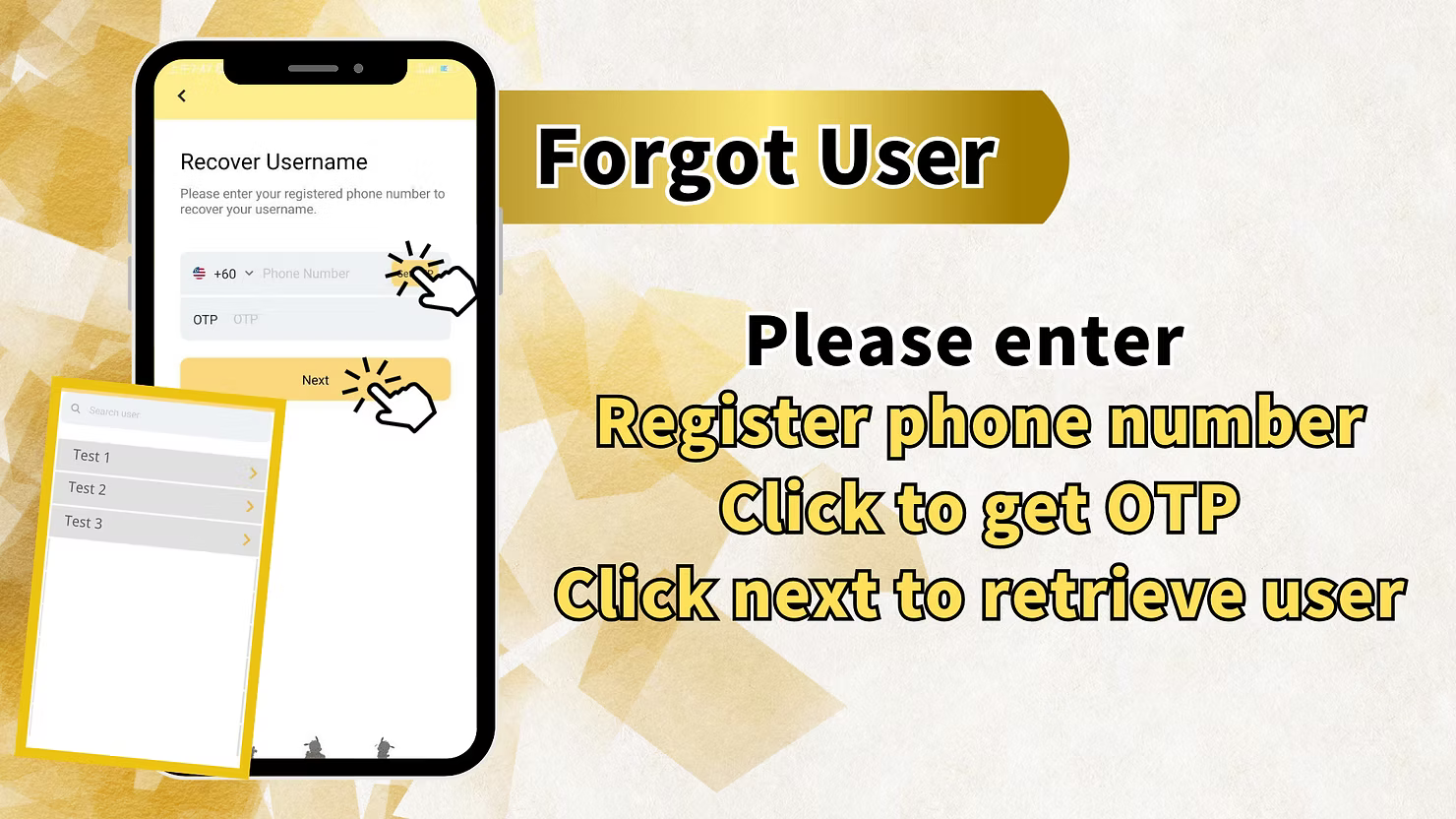
The Recover Username page asks for your registered phone number. Enter your +60 phone number in the provided field.
Step 8: Get OTP for Username Recovery
Request the OTP sent to your registered mobile number and enter it in the designated field. This confirms that you own the phone number linked to the account.
Step 9: Click Next to Retrieve Username
After entering the OTP, click Next. The system will search for users linked to your phone number and display the result, such as Test 1, Test 2, and Test 3, so you can identify your username.
LUCKYTOWN Account Recovery Important Guidelines
Recovery Options Available
LUCKYTOWN gives you three recovery paths: change password while logged in through Settings, recover a forgotten password with OTP, or retrieve a forgotten username with OTP. Use the path that matches your situation.
Phone Number Requirement
For LUCKYTOWN forgot password and forgot username recovery, you must have access to the +60 phone number registered to the account. OTP verification helps ensure only the account owner can reset access.
OTP Verification Process
During account recovery, LUCKYTOWN sends a one-time password to your registered mobile number. Enter it quickly because the code expires after a short period for security.
Password Security
When completing the LUCKYTOWN change password or forgot password flow, create a strong password that you have not used before. Keep it private and do not share it with anyone.
Frequently Asked Questions About LUCKYTOWN Change Password
How do I change my password while logged in?
Go to ME, open Setting, choose Change Login Password, enter your old password and new password, then confirm.
What if I forgot my password and cannot log in?
Click Forgot Password? on the login page, enter your registered phone number and username, request OTP, and set a new password.
What if I forgot my username?
Click Forgot UID / Password on the login page, choose Forgot Username, enter your registered phone number, request OTP, and retrieve your username.
How do I get OTP for account recovery?
In either forgot-password or forgot-username recovery, tap the OTP request button. The code will be sent by SMS to your registered +60 phone number.
What if I do not have access to my registered phone number?
If you cannot receive OTP, use the Contact Us link on the login page and ask customer support for alternative verification help.
How long does OTP remain valid?
OTP codes expire after a short period. If the code expires before you use it, request a new one and try again.
Can I recover my account without OTP?
OTP is the main security method for LUCKYTOWN password and username recovery. If you cannot receive OTP, contact customer service through Contact Us.
Why Choose LUCKYTOWN Account Recovery System
Multiple Recovery Paths
LUCKYTOWN supports password change while logged in, forgot password recovery, and forgot username recovery, giving members more than one way back into their accounts.
Secure OTP Verification
All forgot-password and forgot-username recovery flows use OTP sent to your registered mobile number so only you can reset your account credentials.
Clear Step-by-Step Instructions
Each recovery method is broken into simple steps that members can follow without guessing what to do next.
24/7 Customer Support Access
If the automated recovery flow does not solve the problem, the Contact Us link on the login page provides direct access to support staff.
Seamless Integration
Whether you update your password from Settings or recover credentials from the login page, LUCKYTOWN keeps the process consistent and secure.
Additional Content: The LUCKYTOWN change password and account recovery system gives members complete tools to keep account access under control. If you remember your current password, you can log in, open ME, enter Setting, choose Change Login Password, fill in the old and new passwords, and confirm the update immediately. If you forgot your password, the login page gives you a direct Forgot Password path. Enter your registered phone number and username, request OTP, confirm the code, and set a new password. If you forgot your username instead, use the Forgot Username option, verify your phone number with OTP, and the system will display the usernames linked to that number. The ME section also centralizes related account-management features, including Change Payment Pin, Change Nickname, Change Phone Number, Switch Account, Pull Out All Credit, Google Authentication, Real Name Verification, Change App Icon, and Time Zone settings. On the login page, Forgot Password? and Contact Us keep recovery help close at hand. OTP verification protects the process by ensuring that even if someone knows your username, they still need access to your registered phone number to reset the account. For cases where automated recovery is not enough, Contact Us connects you to support staff for further help. This combination of in-app settings, login-page recovery, and support backup keeps the LUCKYTOWN PLUS account recovery flow practical, secure, and easy to follow.
Secure Your LUCKYTOWN Account Today
Change your password from Settings while logged in, or recover forgotten credentials with OTP verification from the login page. LUCKYTOWN PLUS gives you multiple secure recovery paths to keep your account accessible.
Access Account Recovery Now